API Flow Manager
Log in to the platform and select “API Flow Manager”:
You will be taken to Project dashboard of theAPI Flow Manager and you can view the existing projects that you have accessto.
You can open any of the projects by clicking“Open” or create a new project by clicking on “+ Create” on the topright.
To delete the project, click on the deletebutton
You can create a new blank project or create aproject based on an OpenAPI specifications file.
If you navigate to API Flow Manager from APIDesign Studio, you will be taken to the project corresponding to the API Design Studioproject if it exists. If the corresponding project does not exist, then a new projectwill be created automatically and you will be navigated to it.
The component structure is as follows:
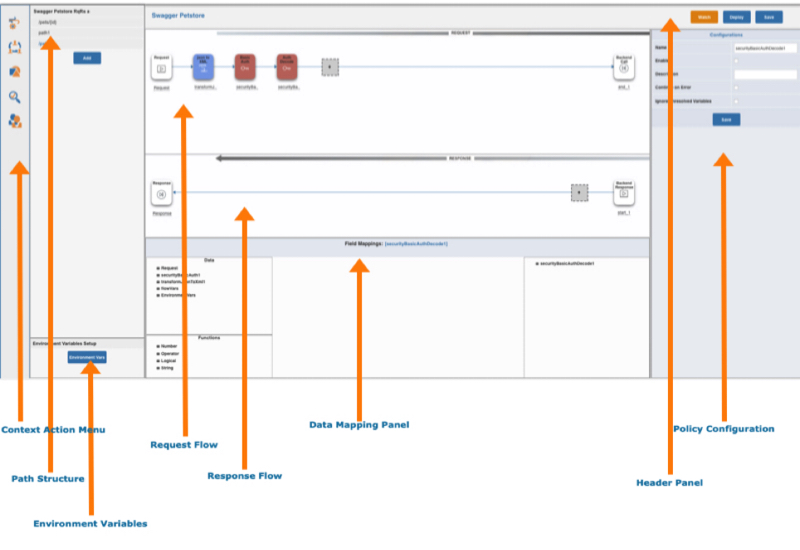
The left most menu bar is the
context action menu :
 Takes user to the API Flow Manager component forthe current project
 Takes user to the API Collaborator component forcurrent project
 Takes user to the API Design Studio component forcurrent project
 Takes user to the API Validator component forcurrent project
 Open dialog to manage access for
The menu panel next to context action menu isthe API paths menu. You can click any of the paths to open the flow for the path inthe canvas in the middle part of the screen.
Do note that the request and response flowsare loaded for the path you click on.
The “Environment Variables” button on thelower left side opens the dialog box for setting the environment variables. These arethe variables that are common to all the flows in a project, meaning, they areavailable and applied to all the flows in all paths. When you click on this button, adialog box opens where you can add variables and edit their values.
The middle part of the screen has three parts.The first is the “Request Flow”. This is the panel where the request flow isdeveloped. The part below that is “Response Flow” in which the response flow isdeveloped.
The part below the Response Flow is DataMapping panel. This is used to get data from various sources such as request,environment variable, flow variables and other policies in the flow path and set asinput to further policies with or without processing with expressions and availablefunctions.
Right most panel is Policy Configurationpanel. The policy configurations are loaded on this panel for the policy card inrequest or response flow. Click on any of the policies in request or response flow toload the configurations for that policy.
This (right most) panel is also used to createthe flow variable structure. To create the flow variable structure, click on therequest or response flow panel outside the policy card.
The top most panel is the header panel and itcontains buttons to save, deploy or watch the flow for a path.
The actions on the header panel are applicableonly to the loaded flows. For example, if you click on 'path1' on the path menu, theflows for that path are loaded, you can update the flow and their configurations andperform one of the actions on header flow. If you click on save, then the changes madeto the flows for the path are saved. Similarly, if you click on deploy, then the flowsthat are loaded gets deployed.
Flow development comprises of:
- Selecting and adding policies
- In some cases, the policies are added conditionally
- Configure the policies, meaning specify the properties of the policies that direct their behaviour at runtime
- Create data mappings
- Create Flow Variables and set and/or read their values
- Save and deploy the flow
These activities are done for request andresponse flow as needed.